Resources Guide
GuideClaude Code writes ugly UI. Here's the free fix
Design real UI in Google Stitch, then hand it straight to Claude Code to build.
You ask Claude Code to build your app.
The backend works. The logic works. The database works.
Then you open it in the browser and… it looks like a form nobody designed. Default fonts. Default spacing. Buttons that are just gray rectangles.
The old way to fix this? Learn design. Open Figma. Spend a weekend picking fonts and colors, then still second-guess every choice.
Now there’s a free tool that skips all of that.
It’s called Google Stitch.
You describe the UI you want, Stitch designs it (colors, fonts, layout, components, the whole system), and then you hand that design straight to Claude Code. One prompt later, it’s real, working code.
What you need before you start:
- A Google account. Stitch is free to use.
- Claude Code, for turning the design into code.
- A transcription tool (optional but handy). Lets you describe the UI out loud instead of typing it.
1. Set It Up
First, what IS Stitch?
Think of it as a designer who never gets tired of exploring options.
You give it a prompt, a reference design, or both. It comes back with a full UI: screens, colors, typography, spacing, components. Not just one screen either. A whole system you can build a real product on.
Claude Code is great at logic. Stitch is great at pixels. You just need to connect the two.
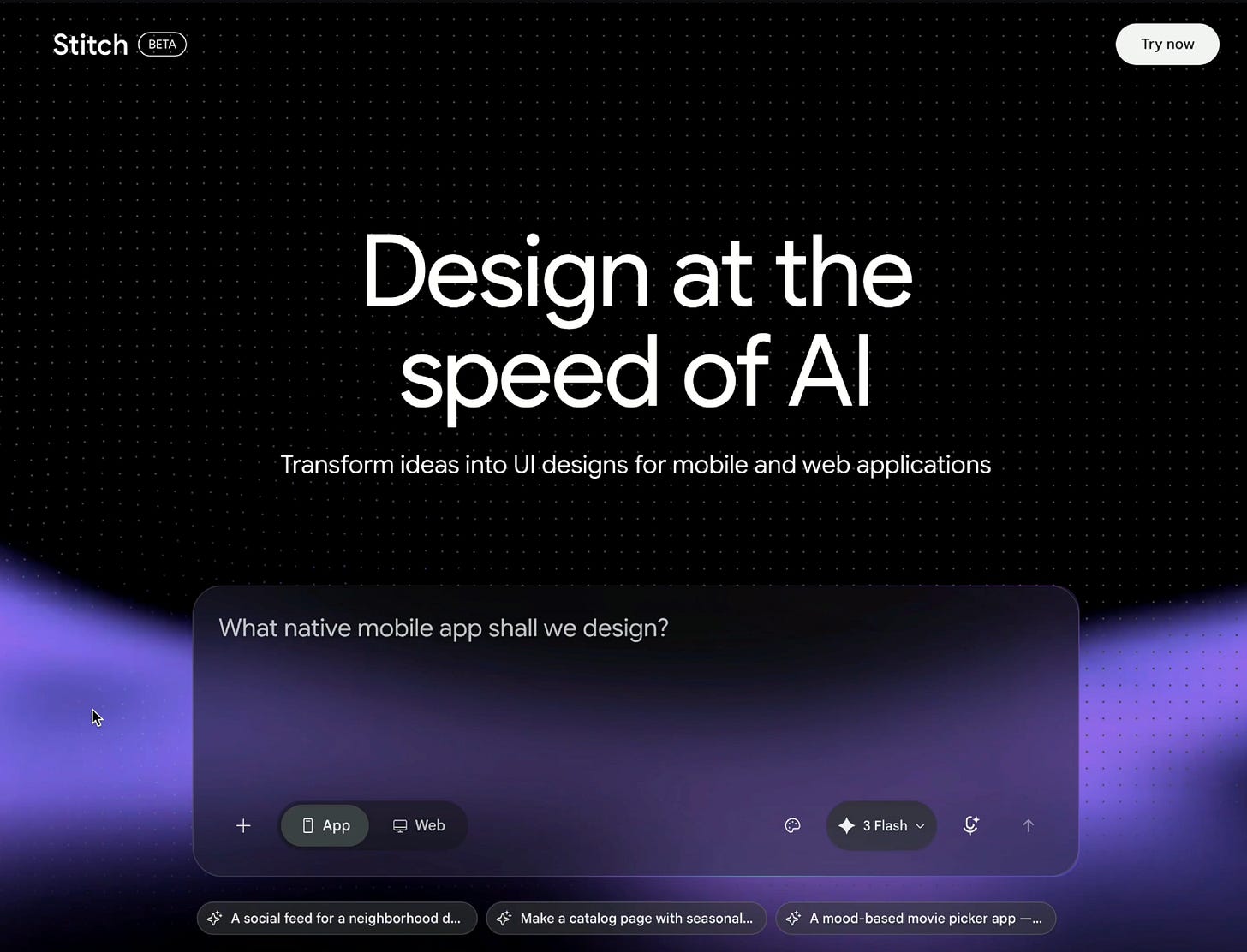
Go to Stitch and sign in with your Google account. That’s the whole setup. Nothing to install, nothing to configure.
2. Beginner Prompt
Start simple. Just describe what you want.
Don’t overthink the prompt. If typing it out feels slow, talk it through with a transcription tool and paste the transcript in instead. Something like:
A clean dashboard for a habit-tracking app. Dark mode. Minimal, lots of white space, one accent color. Home screen shows today’s habits as a checklist, plus a streak counter at the top.
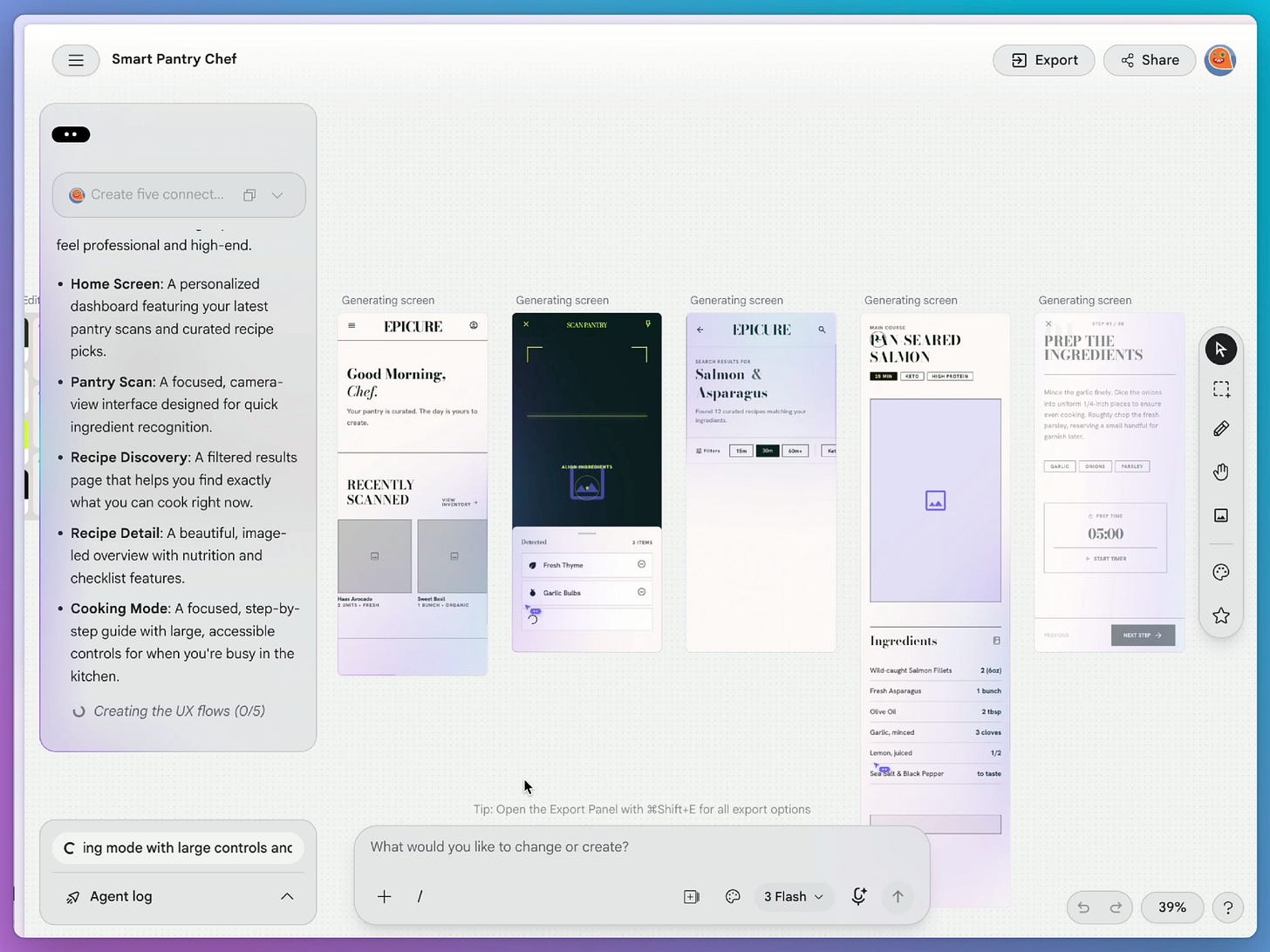
Stitch generates the screen for you, laid out with real components, not a rough sketch.
That’s your first design. No Figma, no design degree, no 3 hours picking a font pairing.
3. Beginner-Intermediate Prompt
A prompt alone only gets you so far. The next move is giving Stitch something to look at.
Go find UI you actually like. A few good places to look:
- Dribbble, for polished concept shots
- 21st.dev, for ready-made component styles
- Landbook, for full landing page layouts
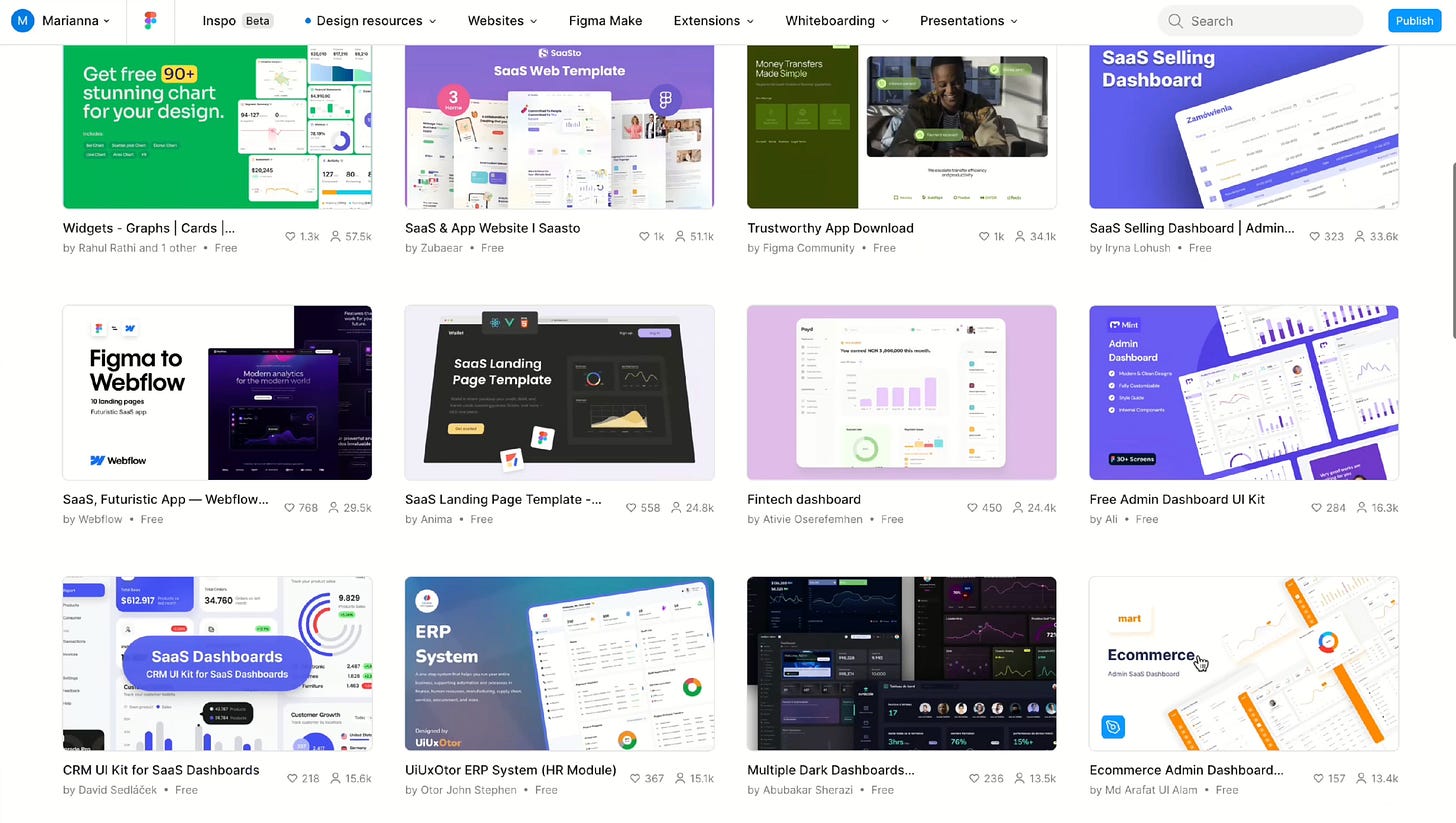
- Figma Community, for free templates you can pull pieces from
There are also some paid tools out there e.g. Recent (formerly Godly) and Mobbin if you want to be fancy.
You don’t need one whole design that matches everything. Grab pieces. A card style from one site, a nav bar from another, a color palette from a third.
Once you’ve got something you like, bring it into Stitch as a reference and prompt from there:
Use this as reference. I want the same card style and spacing, but for a habit-tracking dashboard, dark mode, my accent color is a soft green.
Stitch doesn’t just copy the screen. It builds out the full design system around it: colors, type scale, spacing rules, component states, the works.
4. Intermediate Prompt
Already have a design system? A brand kit, a Figma library, a style guide from a past project?
Feed that in too, alongside your references.
Here’s our existing design system [attach it]. Use it as the base, and pull layout ideas from this reference [attach it] for the dashboard screen.
Stitch works with what you already have instead of inventing something new that clashes with it. This is the move when you’re designing a new screen for an existing product and it actually needs to match.
5. Next Level: Ship It With Claude Code
This is the part that changes everything.
Once your design is where you want it, click Export. Select MCP, then select Claude Code. Create the API key.
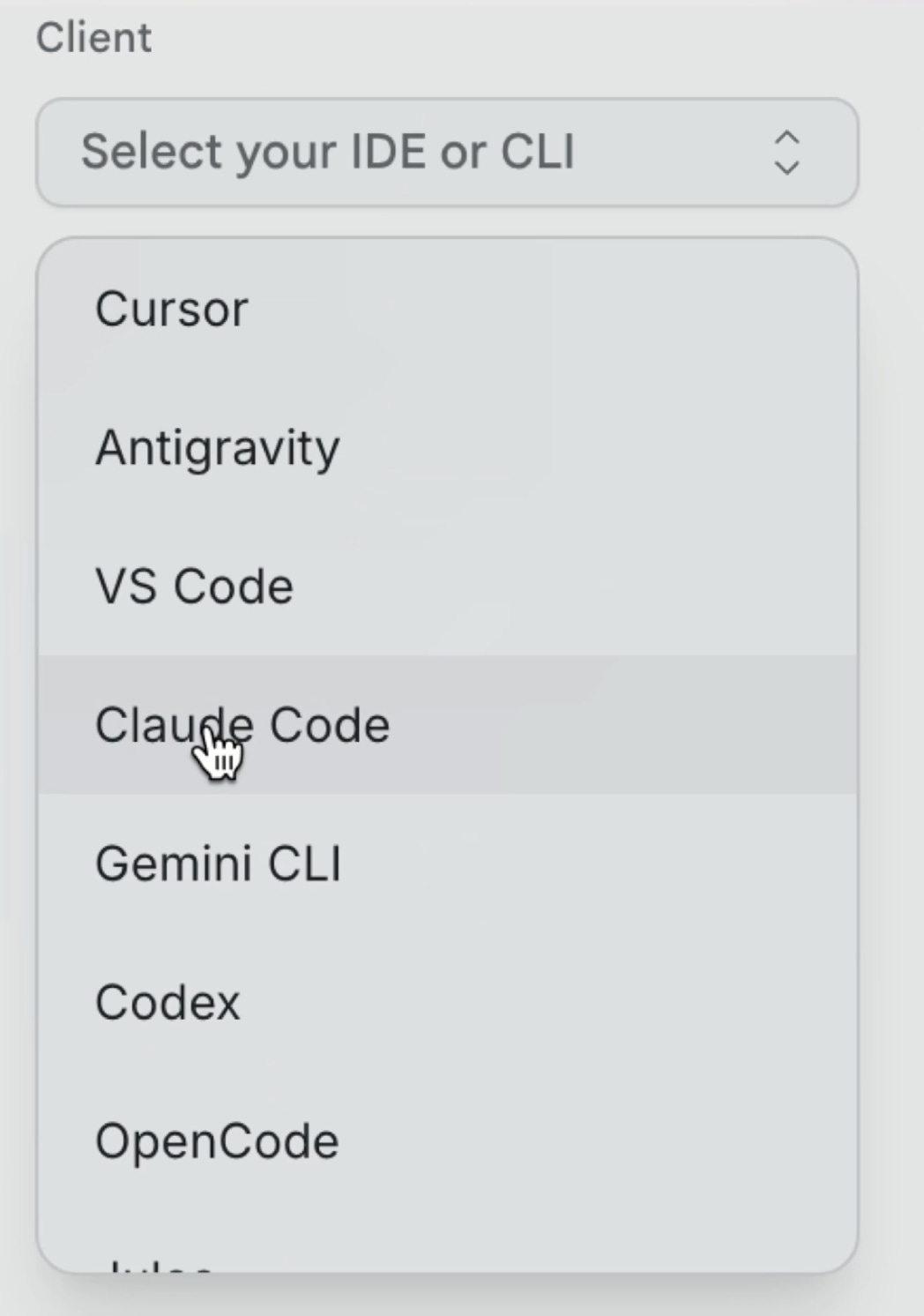
Stitch gives you a connection you paste straight into Claude. That gives Claude Code access to your actual Stitch design, not a screenshot, not a written description of it. Copy the code into Claude and ask it to install the MCP.
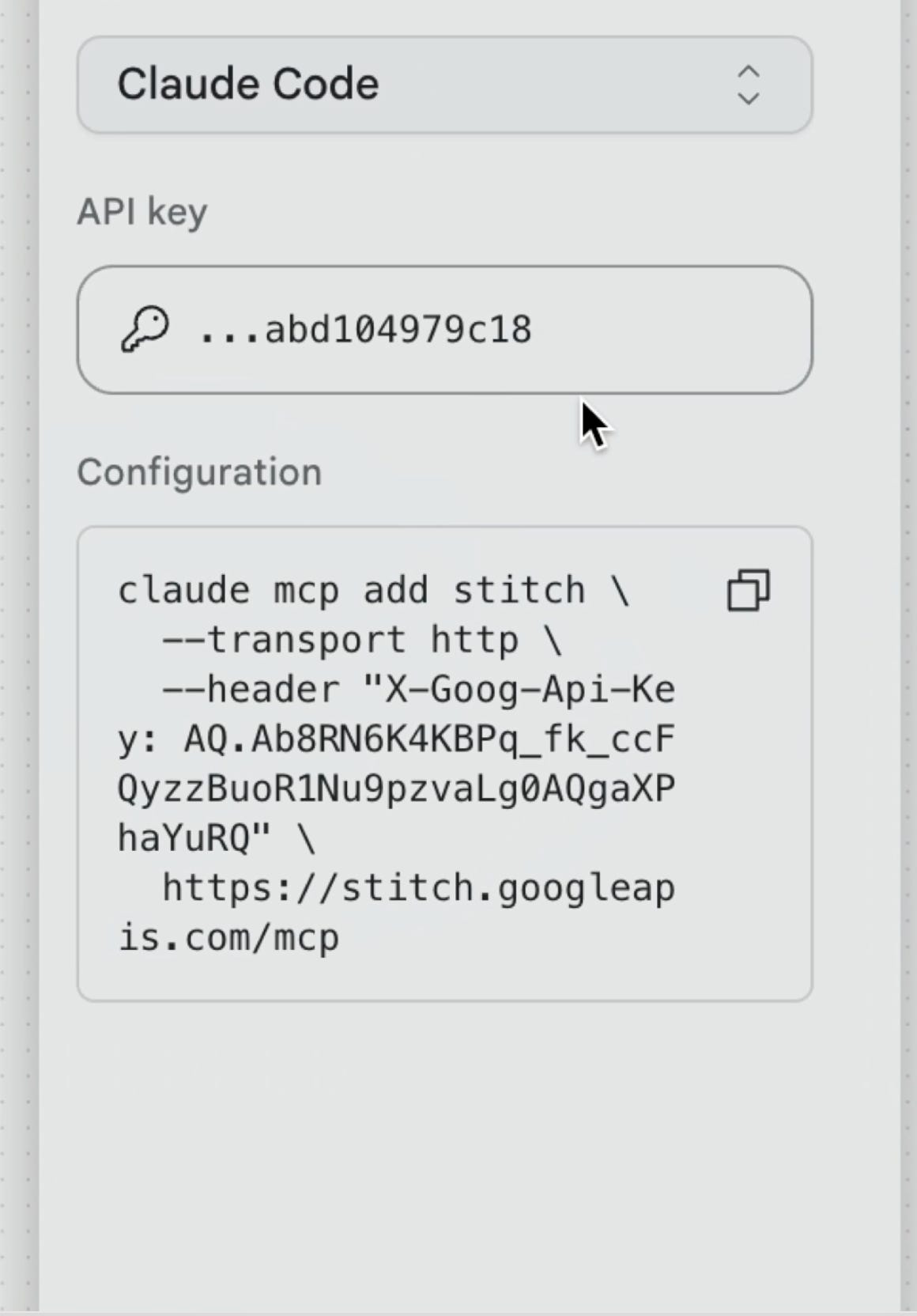
From there, one prompt is enough:
Build this design in [your framework]. Match the layout, spacing, colors, and components exactly.
Claude Code takes it from there and writes real, ready-to-ship code.
You just went from a vague idea to a designed, coded UI without opening a design tool by hand, and without Claude Code guessing what “clean and modern” means.
Now hold up, let’s be realistic. This isn’t a magic button that spits out a perfect app in 2 clicks. Stitch gets you a strong design. Claude Code gets you strong code. You still need to look at both and catch what’s off: a spacing value that’s slightly wrong, a component that doesn’t quite fit your use case, a color that reads different in code than it did in the design tool. Treat the first pass as a strong draft, not a final answer. Preview it, note what’s off, prompt again.
Recap
- Design in Stitch, not in your head. Prompt it, or better, feed it a reference you actually like.
- Reuse what works. Bring in an existing design system if you have one, and hang onto every system Stitch builds for you.
- Hand it to Claude Code through MCP. Export, select Claude Code, paste it in, and one prompt turns the design into real code.
That’s all folks.
Build your AI systems
A practical implementation community for founders building AI-powered systems. Opening soon!