Resources Guide
GuideGive Claude image generation superpowers
Generate and edit images inside Claude Code with one prompt and one API key.
Let me show you how to give Claude image-generation superpowers.
So you can turn this…
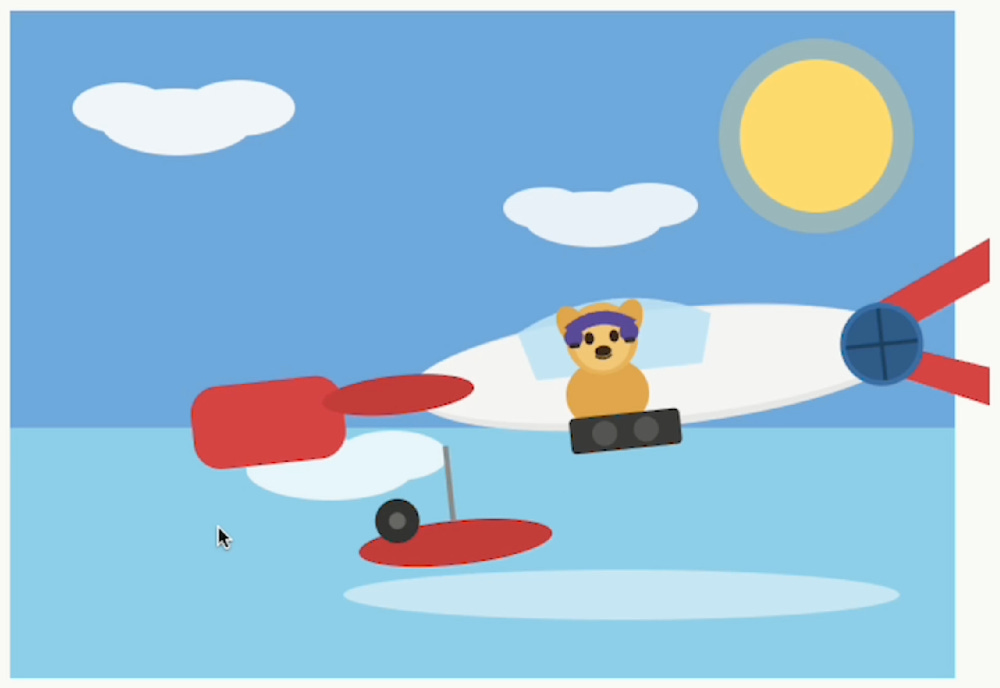
Into this…
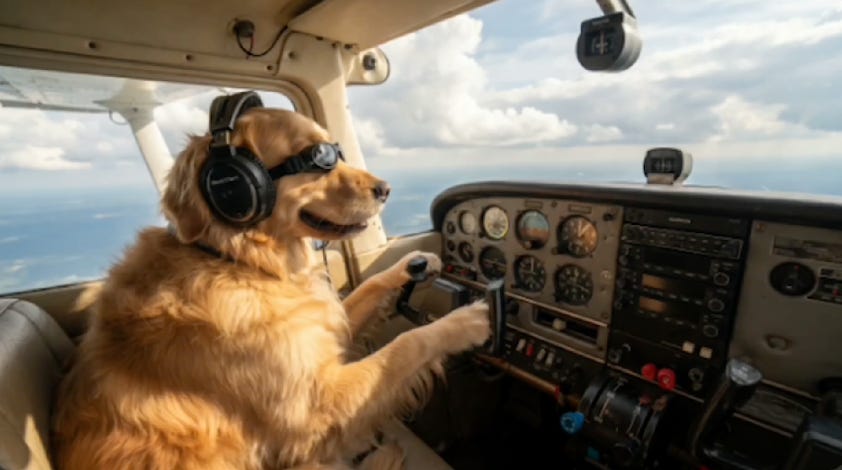
Claude is brilliant at understanding what you want.
But Claude does not have a built-in image generator.
So I connected it to one.
The tool is called Kie.ai. It gives you one API for lots of popular image models, including Nano Banana, GPT Image, Flux, Seedream, Ideogram, Recraft, and more.
Now I can describe an image inside Claude Code, ask Claude to choose the right model, and have the finished file saved straight into my project folder.
No copying prompts between five different apps.
No downloading files and trying to remember which model made what.
Just:
“Make me an image of…”
And Claude handles the rest.
TL;DR
You will connect Claude Code to Kie.ai using an MCP connector.
Kie.ai supplies the image models. Claude becomes the creative director: it improves your prompt, selects a model, starts the generation, checks when it is finished, and saves the result.
The setup takes about five minutes. You do it once.
What you need before you start:
- A Mac or Windows computer
- Claude Code installed and working
- A free Kie.ai account
- Node.js 18 or newer
1. Make a folder for your images
Create a new empty folder on
your computer.
Call it something like:
claude-images
Now open Claude Code in that folder.
Two ways—pick one:
- Easiest: Open the Claude desktop app, go to the Code tab, choose Select folder, and pick
claude-images. - Terminal: Open Terminal, move into the folder, and run
claude.
Keeping everything in one folder makes the setup easier—and gives Claude somewhere obvious to save your images.
2. Tell Claude to install the image connector
Paste this into Claude Code:
can you help me install https://kie.ai/ so i can generate images from claude ? also create a .env file so i can paste my kie api key. when you create the .env file, go ahead and open it for me.
3. Create your Kie.ai API key
Now Claude needs permission to use the image models.
Go to Kie.ai and create an account.
Then open the API Keys page.
Click Create New Key.
Choose whether the key can access every model or only the models you plan to use. Give it a clear name, like:
Claude image generation
If Kie.ai gives you the option, add a spending limit or usage cap. This is the boring security step that Future You will be very happy you did.
Click Create, then copy the key.
Do not paste it into the Claude chat.
4. Put the key in your `.env` file
Claude should have opened a file called .env.
Inside it, add:
KIE_AI_API_KEY=PASTE_YOUR_KEY_HEREReplace PASTE_YOUR_KEY_HERE with your real key.
Save the file.
That is it.
A .env file is only safe if it stays private. Never share it, attach it to a message, commit it to a repository, or show it in a screenshot. Kie.ai also recommends treating keys as secrets and supports per-key rate limits and IP restrictions. See its API security guidance.
5. Finish the connection
Go back to Claude Code and type:
I added the Kie.ai key to
.env. Finish the MCP setup, verify that the image tools are available, and do not print or reveal the key. Tell me if I need to restart Claude Code.
Claude may ask you to restart the app or begin a new Claude Code session.
Do that.
After the restart, ask:
List the Kie.ai image-generation and image-editing tools you can use. Do not generate anything yet.
If Claude lists the tools, you are connected.
6. Generate your first image
Now for the fun part.
Paste this:
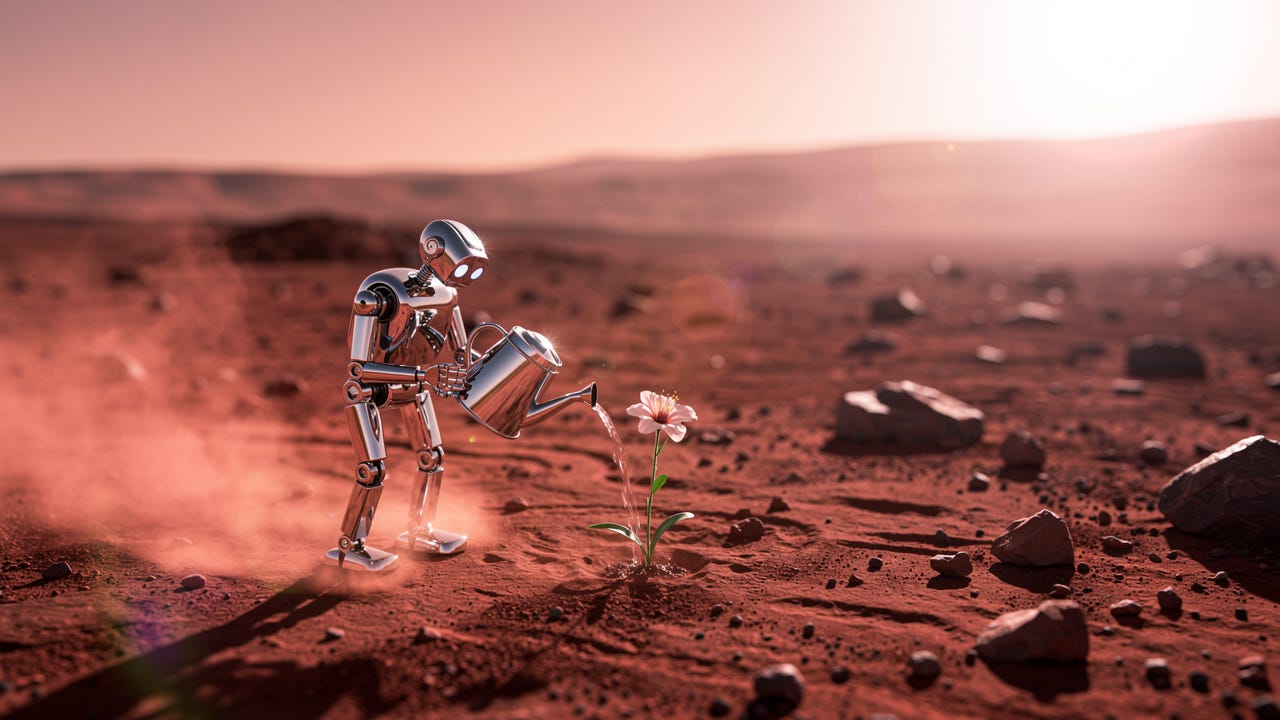
Create a cinematic editorial photo of a tiny chrome robot watering one flower on the surface of Mars at sunrise. Use a wide 16:9 composition, soft red dust, long shadows, realistic metal reflections, and lots of negative space for a headline. Choose the best-value Kie.ai image model for this prompt. Before generating, tell me which model you chose and the estimated credit cost. Then generate one image and save the final file inside an
imagesfolder.
Claude should:
- Choose a model.
- Tell you what it expects the generation to cost.
- Send the prompt to Kie.ai.
- Wait for the task to finish.
- Save the finished image into your folder.
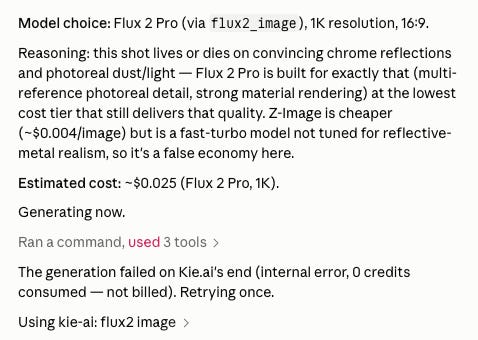
That last part can take a minute. Kie.ai generation jobs are asynchronous, which means the first response creates the job and Claude then checks for the finished result.
Now open the images folder.
You made an image without leaving Claude.
7. Edit an existing image
Claude can also use a reference image.
Drop an image into your project folder, then tell Claude exactly what should change—and what should stay untouched.
Try:
Edit
product-photo.jpg. Replace the plain wall with a warm travertine studio backdrop, add soft late-afternoon window light from the left, and keep the product shape, label, logo, colors, and camera angle unchanged. Choose the best Kie.ai model for precise image editing. Show me the final prompt before you spend any credits, then save the result asimages/product-photo-edited.png.
This is where the workflow gets REALLY useful.
You can keep iterating in the same conversation:
“Make the light softer.”
“Give me a vertical version for Instagram.”
“Keep everything identical, but change the background to deep green.”
Claude remembers the creative direction. The image model does the rendering.
8. The prompt formula that gets better images
A vague prompt gives you a vague image.
Good image prompts usually include five things:
- Subject: What is in the image?
- Setting: Where is it?
- Composition: Close-up, wide shot, overhead, centered, negative space?
- Light and style: Soft daylight, flash photography, cinematic, minimal, illustrated?
- Output: Aspect ratio, size, format, and where the file should be saved.
The easiest way to get all five is to let Claude interview you.
Use this:
I want to create an image for [describe the project]. Ask me up to five short questions about the subject, composition, mood, visual references, and final format. Then turn my answers into three distinct creative directions. Do not generate anything until I choose one. After I choose, recommend the best Kie.ai model and estimate the credit cost before generating.
Now Claude is not just pressing the Generate button.
It is helping you art-direct the image.
9. What does it cost?
Kie.ai uses credits rather than a monthly image subscription.
At the time of writing, new accounts receive a small amount of free credit, and paid credits start at about 1,000 credits for $5. The number of credits used per image depends on the model and settings.
Kie.ai says its model pricing is typically 30–50% below official APIs, although that is the company’s own comparison and prices can change. Check the live Kie.ai pricing page before publishing—or before generating a big batch.
My rule:
Ask Claude for the model and estimated cost before every generation.
That keeps experiments cheap and prevents an “oops, I made 40 versions” moment.
10. If it does not work
Claude cannot see the image tools
Restart Claude Code completely. MCP tools normally load at the start of a session.
Then ask Claude to inspect its MCP configuration and confirm that the Kie.ai server is enabled.
You get an authentication error
Check that your .env file contains exactly:
KIE_AI_API_KEY=your-real-keyMake sure there are no smart quotes or spaces around the variable name.
If the key may have been exposed, revoke it on the Kie.ai dashboard and create a new one.
Claude says `npx` or Node.js is missing
Install the current Node.js LTS release, restart Claude Code, and repeat the installation prompt. The community connector currently requires Node.js 18 or newer.
The image job starts but never finishes
Ask Claude:
Check the latest Kie.ai task status and show me the error without exposing my API key.
You can also inspect your generation history on the Kie.ai logs page.
Claude just got a new creative department
Claude still is not generating the pixels itself.
It is doing something more useful.
It understands your idea, turns it into a better prompt, selects the right image model, runs the generation, and keeps every result inside your working folder.
So instead of bouncing between Claude, an image app, your Downloads folder, and back again…
You stay in one conversation.
Your new workflow is:
Idea → Claude → image model → finished file
And once it is installed, you can just say:
“Make me an image of…”
That is Claude with image-generation superpowers.
Build your AI systems
A practical implementation community for founders building AI-powered systems. Opening soon!